The gateway provides two user accounts: admin and ruser. Both accounts are used for administrative, configuration, and basic troubleshooting activities.
To log in to the gateway:
- Open a web browser and enter:
https://<Gateway IP>:5480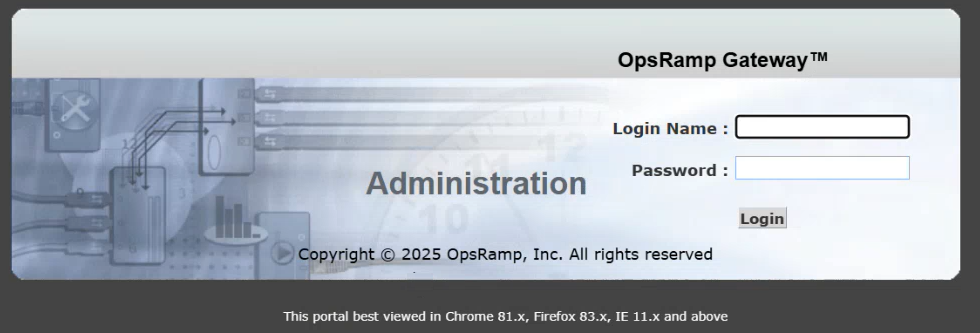
- In the Appliance Administration Portal screen, click Password. The two user accounts are displayed, as shown below:
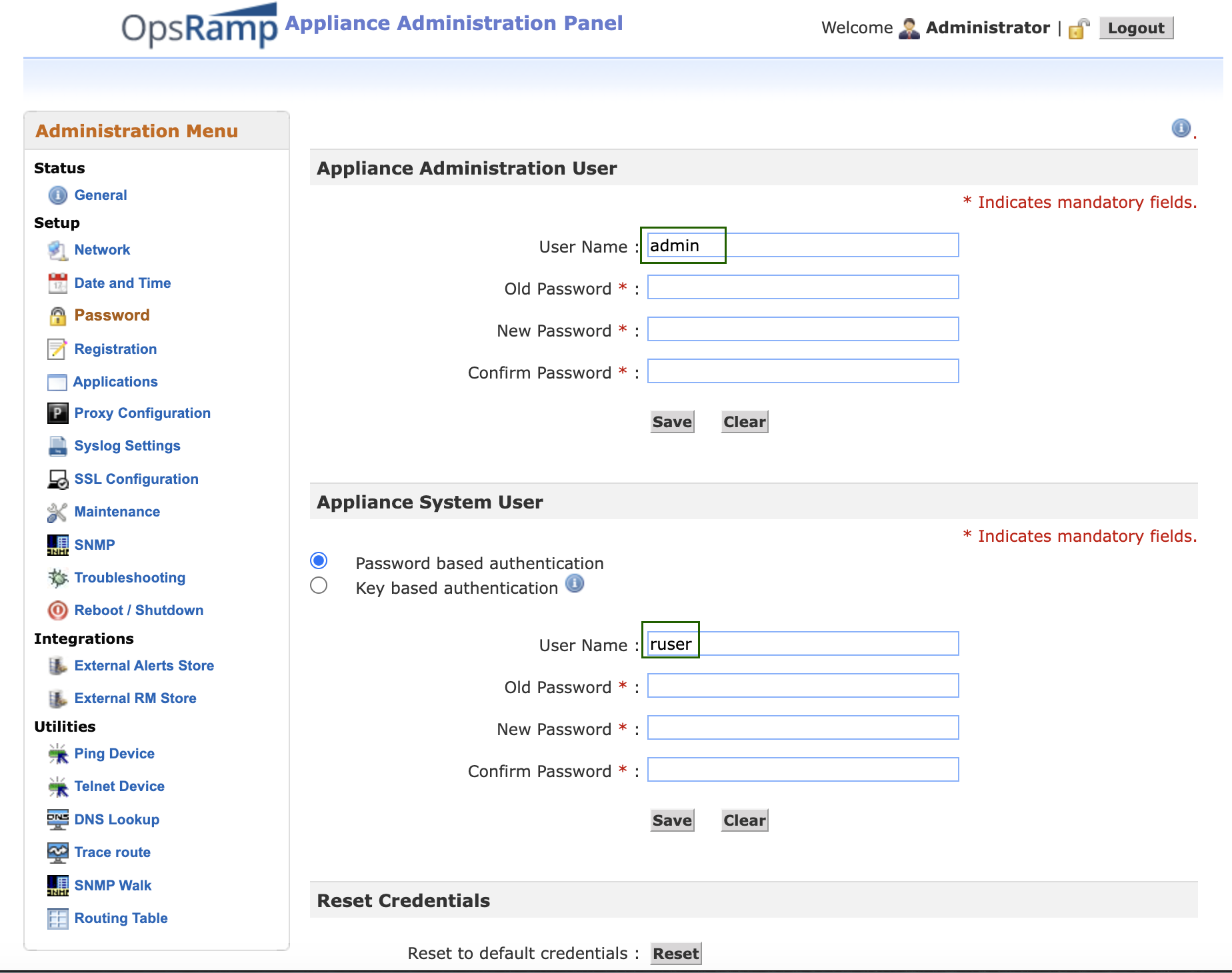
Administration User (
admin):
Theadminaccount allows you to access the gateway’s web interface for administrative tasks, including credential configuration, gateway registration, date and time settings, network configuration, and more. This account does not provide shell or command-line access to the gateway appliance.System User (
ruser):
Theruseraccount allows you to access the gateway command-line interface withsudoprivileges for basic troubleshooting, such as accessing log files, running ping, performing SNMP walk operations, and more. You can also access the gateway directly using key-based authentication.
Changing Passwords
The default passwords for the admin and ruser accounts are available from the console. To locate the default passwords:
- Navigate to Setup > Account > Collector Profile.
- Click +Add. The ADD GATEWAY PROFILE page appears.
- Click the three dots in the Gateway Image tile (for example, select Classic > Virtual Appliance (ISO)).
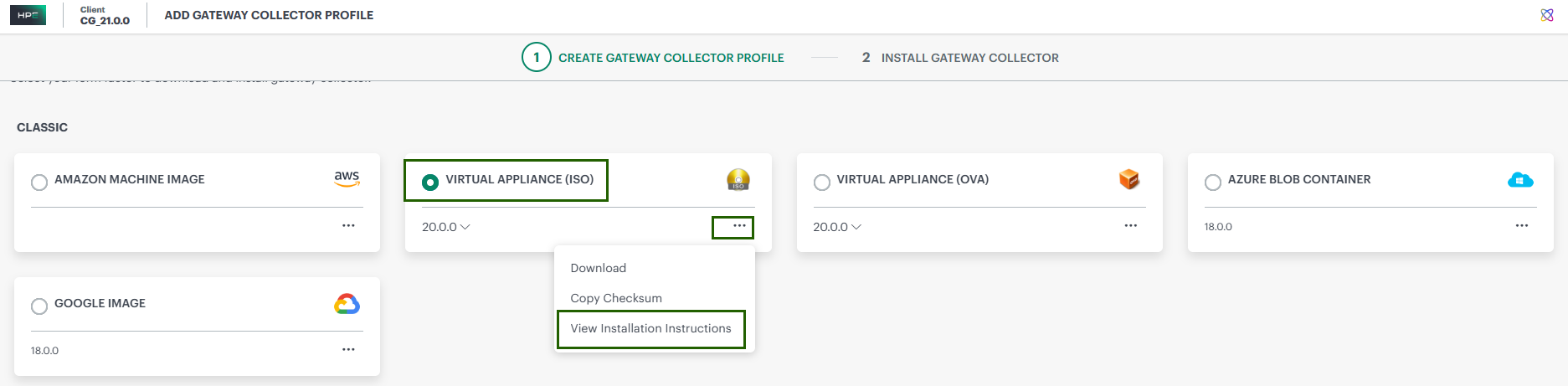
- Click View Installation Instructions. The GATEWAY COLLECTOR INSTALLATION page appears.
- Click Activation. The default gateway settings are displayed.
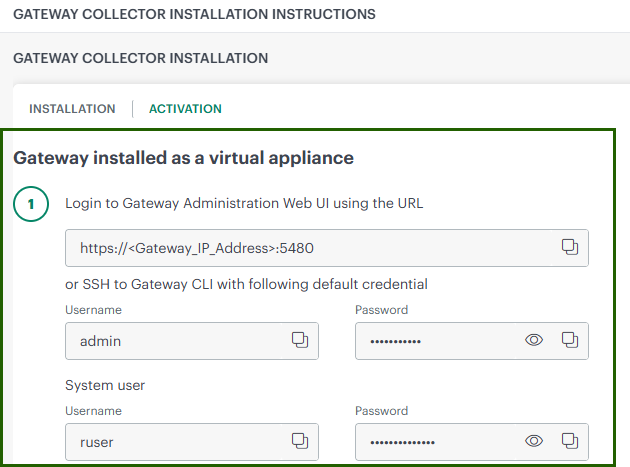
You must change the default password during your first login. Passwords can be changed using either the command-line interface or the gateway web interface.
Change Password Using the Command Line
- Log in to the gateway CLI via SSH using your username and password.
- Switch to the
adminuser by runningsu admin. - Select the Password option and follow the on-screen instructions.
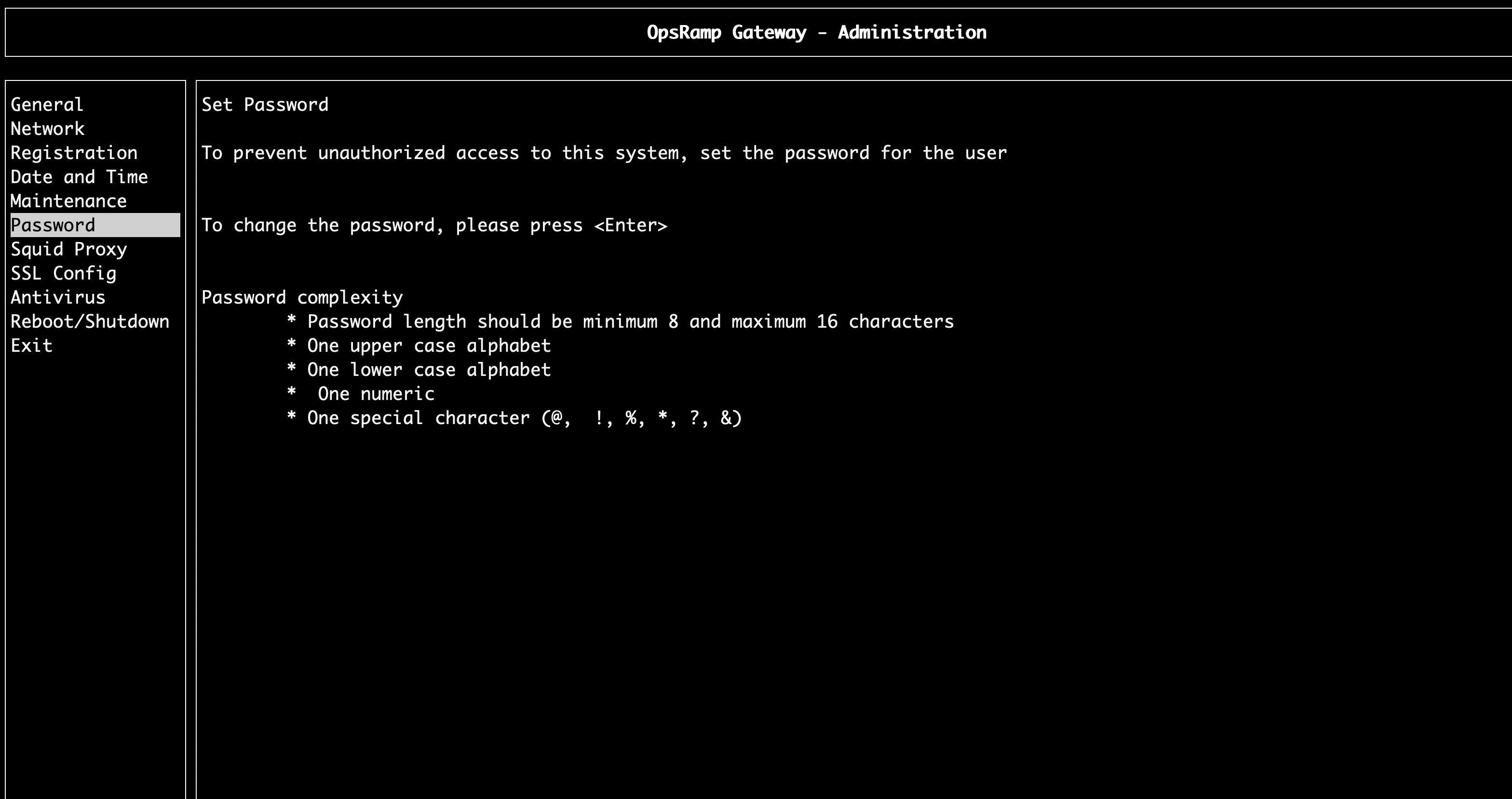
Change Password Using the Web Interface
- Log in to the gateway at
https://<gateway-ip>:5480using your credentials. - Select the Password option.
- Follow the on-screen instructions to change your password, as shown below.
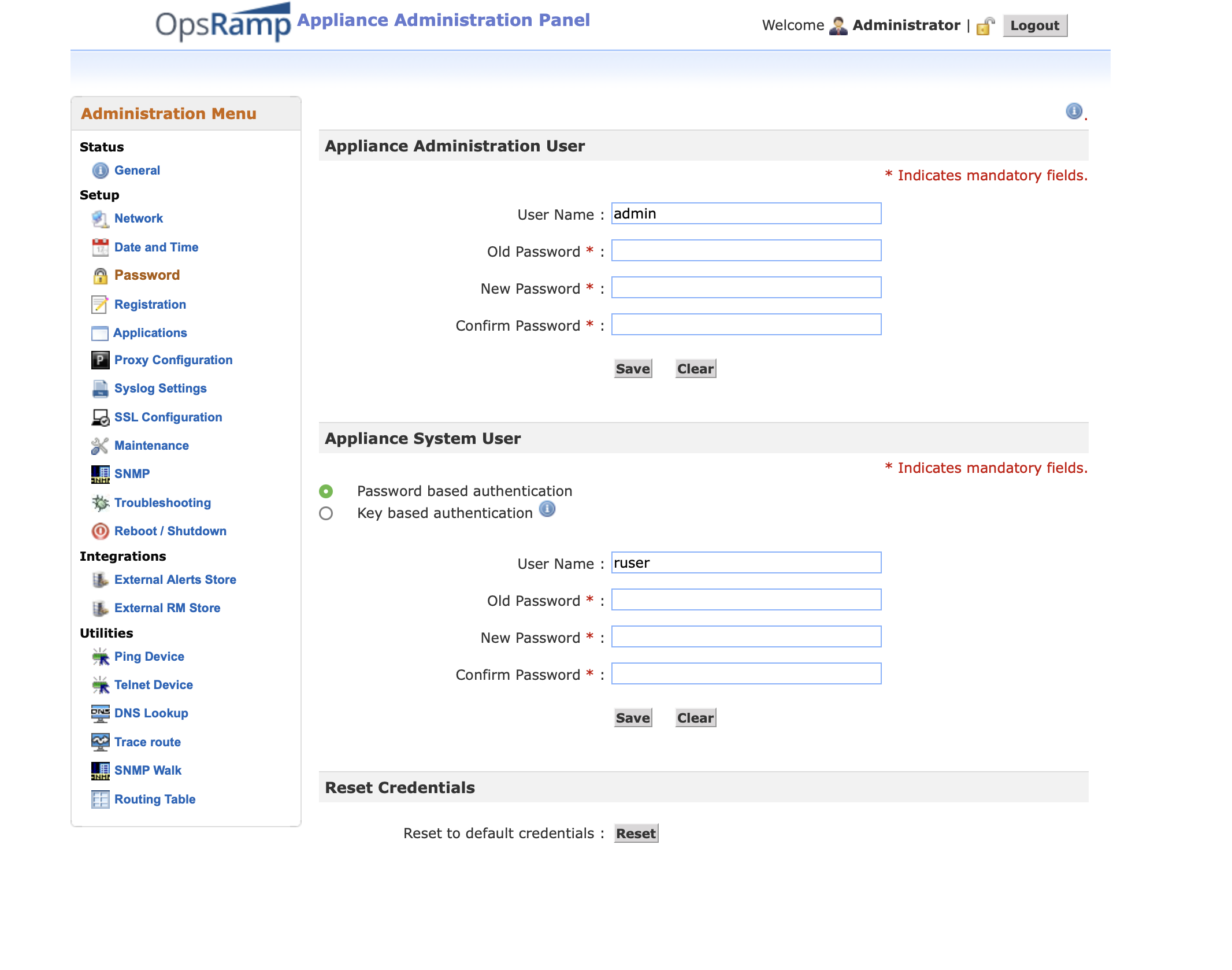
You must change the default password at your first login.